Managing two or more computers from one desk can quickly create a tangle of keyboards, mice, monitors, and cables. The best KVM switches for home offices simplify that setup by letting you share peripherals—and, in many cases, multiple displays—with the press of a button.
This roundup covers practical options for everyday productivity, high-refresh-rate displays, laptop docking, multi-monitor workstations, and remote BIOS-level access. Before choosing one, confirm your video connections, resolution and refresh-rate needs, USB requirements, and the number of computers and monitors you plan to connect.
Best 10 Kvm Switches for Home Offices Picks for 2026
Triple-Display Performance Pick

- Switches three monitors between two computers
- Supports 4K at 144Hz and 8K at 60Hz
- Shares USB 3.0 peripherals at up to 5Gbps
Best For: Three-monitor DisplayPort workstations
Remote Management Pick

- Provides remote BIOS-level computer control
- Supports 4K video at 30Hz with hardware encoding
- Enables remote rebooting, file transfers, and OS installation
Best For: Remote PC, server, and home-lab management
Dual-HDMI Office Pick

- Switches two HDMI monitors between two computers
- Supports 4K at 60Hz with HDR features
- Includes four USB 3.0 peripheral ports
Best For: Two-monitor HDMI home-office desks
Wireless Remote Access Pick
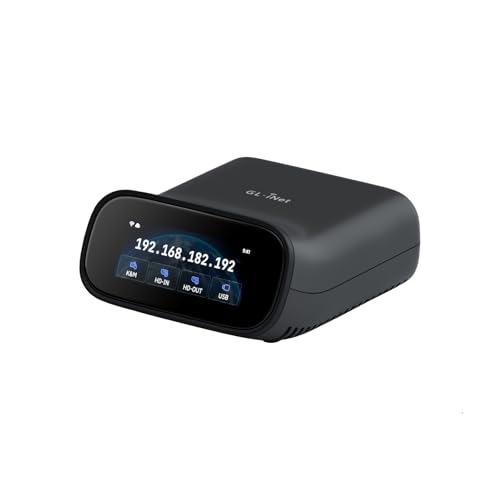
- Supports wired and dual-band Wi-Fi 6 connections
- Provides 4K video passthrough and two-way audio
- Offers BIOS access and remote recovery features
Best For: Wireless home-lab and remote system management
Best for Triple-Monitor Desks
Triple-Monitor HDMI/DisplayPort KVM

- Shares three monitors between two computers
- Supports 4K at 60Hz
- Includes four USB 3.0 ports
Best For: Two-computer home offices using three displays
Best Dual-Laptop Dock

- Shares two monitors between two USB-C laptops
- Adds USB, Ethernet, SD, headset, and charging features
- Switches in approximately 2–3 seconds
Best For: Hybrid workers using two compatible laptops
Best for Four PCs

- Controls four computers from one monitor
- Supports 4K at 60Hz with EDID adaptation
- Includes USB 3.0 and USB-C peripheral sharing
Best For: Home offices managing multiple PCs from one display
Dual-Display Powerhouse
8K DisplayPort Dual-Monitor KVM

- Controls two computers across two monitors
- Supports up to 8K@60Hz and 4K@240Hz
- Includes three USB 3.0 peripheral ports
Best For: Dual-monitor DisplayPort workstations and gaming desks
Four-Computer Hub
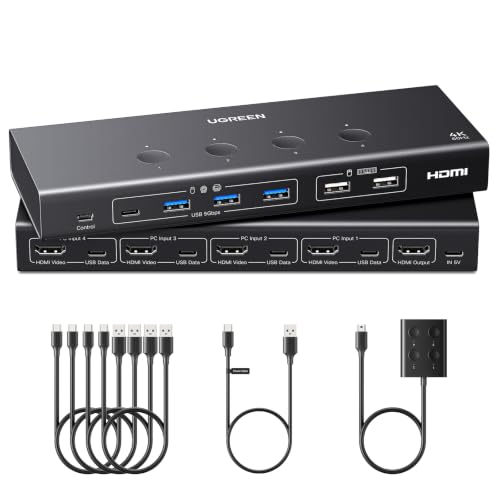
- Shares one monitor across four computers
- Offers six USB peripheral ports
- Supports 4K@60Hz with EDID emulation
Best For: Multi-computer offices using one HDMI monitor
Simple Dual-PC Switch

- Shares one HDMI monitor between two computers
- Supports up to 8K@30Hz and 4K@240Hz
- Includes three USB 3.0 ports and a wired remote
Best For: Two-computer, single-monitor home office setups
Triple-Display Performance Pick – 4K DisplayPort KVM for 2 PCs
For home offices that rely on three monitors, this DisplayPort model is one of the more capable kvm switches for home offices. It lets you share three displays, a keyboard, mouse, and USB peripherals between two computers, with one-button switching from the included desktop controller.
Best For: Dual-PC workstations using three DisplayPort monitors and high-refresh-rate displays.
Pros:
- Supports triple-monitor switching between two computers.
- Handles up to 4K at 144Hz and up to 8K at 60Hz.
- USB 3.0 sharing provides data rates up to 5Gbps.
- Includes a wired controller for convenient switching.
Cons:
- Each computer needs three DisplayPort outputs for a three-monitor setup.
- It is not the right choice for HDMI-only computers or displays.
This is a strong fit for demanding home-office and workstation setups, provided your computers have enough DisplayPort outputs. Its high-refresh support and triple-display control make it more specialized than a basic two-monitor KVM.
Remote Management Pick – GL.iNet Comet GL-RM1 KVM
The GL.iNet Comet GL-RM1 takes a different approach to kvm switches for home offices by providing remote access rather than local monitor switching. It can provide BIOS-level control, remote rebooting, operating-system installation, file transfers, and computer access over the internet without requiring software on the controlled computer.
Best For: Remote workers, home-lab users, and IT tasks that require BIOS or pre-boot access.
Pros:
- Supports remote BIOS control, rebooting, and OS installation.
- Works with laptops, desktops, servers, and other compatible systems.
- Provides 4K at 30Hz video with low-latency H.264 hardware encoding.
- Includes remote audio and file-transfer capabilities.
Cons:
- It is designed for remote access rather than conventional local multi-monitor switching.
- Video output is limited to 4K at 30Hz.
- Power Delivery adapters cannot be used.
Choose this model when the priority is controlling a computer from elsewhere, especially for maintenance or recovery. It is less suitable if you simply want to alternate two nearby computers on one set of local displays and peripherals.
Dual-HDMI Office Pick – UGREEN 2-Monitor KVM
For a conventional two-computer, two-monitor desk, the UGREEN AK500 is a practical option among kvm switches for home offices. It supports extend or mirror display modes, shares four USB 3.0 ports, and switches through either the unit’s button or the included desktop controller.
Best For: Home-office users with two HDMI monitors and two computers.
Pros:
- Controls two computers with two shared HDMI monitors.
- Supports 4K at 60Hz, HDR, HDR10+, HDCP, and 3D.
- Offers four USB 3.0 ports, including USB-A and USB-C connections.
- Includes HDMI cables, USB cables, power adapters, and a desktop controller.
Cons:
- It does not support EDID emulation or keyboard hotkey switching.
- Both monitors display the selected computer rather than mixing sources between PCs.
- Each computer requires two HDMI cables and one USB-A connection.
This model makes sense for a straightforward dual-monitor HDMI setup, especially if you value included cables and a remote desktop controller. Check cable lengths and confirm that each computer supports simultaneous dual-screen output before buying.
Wireless Remote Access Pick – GL.iNet Comet Pro KVM
The GL.iNet GL-RM10 Comet Pro is a flexible remote KVM for home offices and home labs that need access without being physically beside the computer. It supports wired or dual-band Wi-Fi 6 networking, 4K video passthrough at 30 frames per second, two-way audio, and remote control through web, app, or Tailscale-based connections.
Best For: Wireless remote management, home labs, and systems needing BIOS or recovery access.
Pros:
- Supports both 2.4GHz and 5GHz Wi-Fi 6 bands as well as wired connectivity.
- Provides 4K at 30fps video passthrough with two-way audio.
- Enables remote BIOS access, OS reinstallation, and disaster recovery.
- Includes a built-in touchscreen and Tailscale support.
Cons:
- It is a remote-access KVM, not a standard local multi-computer display switch.
- Remote power control and hard-reset features require separately sold ATX Board or Fingerbot extensions.
- Video passthrough is limited to 30fps at 4K.
This is a particularly capable choice when remote access and recovery matter more than simple desk-side switching. Its wireless networking and self-hosted cloud option add flexibility, while the separate power-control accessories increase the total setup requirements.
Best for Triple-Monitor Desks – Triple-Monitor HDMI/DisplayPort KVM
For home offices that rely on three displays, this KVM switch lets two computers share three monitors plus USB peripherals. It supports HDMI and DisplayPort connections, 4K at 60Hz, and both physical-button and wired-remote switching, but verify that each computer has two DisplayPort outputs and one HDMI output before buying.
Best For: Home-office users running two computers across three monitors.
Pros:
- Supports two computers sharing three monitors.
- Handles up to 4K at 60Hz when the connected devices, monitors, and cables support it.
- Includes four USB 3.0 ports with transfer speeds up to 5Gbps.
- Offers panel-button and wired-remote switching, plus extended, mirrored, and splicing display modes.
Cons:
- Each computer needs two DisplayPort ports and one HDMI port.
- USB devices require the included USB cables to be connected to the computers.
- Its three-monitor configuration may be more than a basic desk setup needs.
This is a specialized choice for a three-screen workflow rather than a simple single-monitor setup. Check your computer outputs and display requirements first, then its high-resolution support and flexible switching can help keep a multi-screen home office organized.
Best Dual-Laptop Dock – 12-in-1 Dual-Monitor KVM Dock
This KVM docking station is designed for home offices where two USB-C laptops need to share two monitors, peripherals, and a network connection. It combines switching and docking in one unit, with one-button switching and no required software, though compatibility checks are important—laptops need USB-C DP Alt Mode and DP MST support, and Macs are limited to mirrored displays.
Best For: Dual-laptop home offices and hybrid workspaces seeking a shared dual-monitor dock.
Pros:
- Lets two laptops share two monitors, keyboard, mouse, and other peripherals.
- Provides 12-in-1 connectivity, including USB ports, Ethernet, headset, SD card, and dual HDMI outputs.
- Supports up to 4K video input and up to 60W charging for each laptop.
- Uses EDID emulation and automatic PC wake-up for switching in about 2–3 seconds.
Cons:
- Requires compatible USB-C laptops with DP Alt Mode and DP MST for extended dual displays.
- Mac models support mirrored displays only due to macOS limitations.
- It is not compatible with 5K monitors, FreeSync/G-Sync, or Dell Display Manager.
Among kvm switches for home offices, this model stands out when the main challenge is managing two laptops rather than desktop PCs. Its integrated docking features can reduce desk clutter, but the display and laptop compatibility limitations should be confirmed before purchase.
Best for Four PCs – 4-Port HDMI 4K KVM Switch
For a home office with several computers but one display, this four-port HDMI KVM switch shares one monitor, keyboard, mouse, and USB accessories across up to four PCs. It supports 4K at 60Hz and includes front-panel controls plus a wired desktop remote, making it practical when the switch is positioned away from your main seating area.
Best For: Multi-PC home offices, test benches, and workstations using one monitor.
Pros:
- Controls four computers through one monitor, keyboard, mouse, and shared peripherals.
- Supports HDMI 2.0 video up to 3840×2160 at 60Hz with EDID adaptation.
- Provides three USB-A 3.0 ports and one USB-C data port with speeds up to 5Gbps.
- Includes one-touch front buttons, a wired remote, cables, and under-desk mounting brackets.
Cons:
- Supports one monitor rather than a multi-monitor workstation.
- Hotkey switching is not supported.
- Each computer requires an HDMI cable and a USB cable connection.
This is a straightforward fit for users who prioritize switching among four PCs over expanding their display setup. Its EDID support and included remote simplify everyday operation, while the single-monitor design keeps the configuration focused and relatively easy to manage.
Dual-Display Powerhouse – 8K DisplayPort Dual-Monitor KVM
For home offices that use two computers and two monitors, this DisplayPort KVM switch centralizes your keyboard, mouse, and USB accessories while supporting Extended or Mirror display modes. It is a strong fit for high-resolution workflows, provided each computer can natively drive two external displays.
Best For: Dual-monitor home offices, professional workstations, and gaming setups using DisplayPort-equipped computers.
Pros:
- Supports dual-monitor control for two computers with Extended and Mirror modes.
- Handles up to 8K at 60Hz or 4K at 240Hz when the connected equipment supports those specifications.
- Three USB 3.0 ports provide up to 5Gbps transfer speeds for peripherals such as webcams, printers, and storage devices.
- Front-button and wired-desktop-controller switching offer flexible placement.
Cons:
- DisplayPort cables are not included.
- Each computer needs two DisplayPort connections and must already support two simultaneous external displays.
- Power-hungry USB devices may require an external 5V/2A power adapter.
This is one of the more capable KVM switches for home offices with genuine dual-monitor requirements. Check your computers’ display outputs and desired refresh rates before buying, since the switch cannot add dual-display capability.
Four-Computer Hub – UGREEN 4-Port HDMI KVM
This UGREEN HDMI KVM is designed for home offices where four computers need to share one monitor and a group of USB accessories. It emphasizes port capacity and organized switching, with support for Windows, macOS, and Linux systems.
Best For: Home offices, testing environments, and workstations that rotate among four computers on one HDMI display.
Pros:
- Lets four computers share one monitor, keyboard, mouse, and USB peripherals.
- Supports up to 4K at 60Hz, plus HDR, 3D, and HDMI 2.0 features.
- Provides six USB ports: four USB 3.0 and two USB 2.0.
- EDID emulation can help retain display identification and reduce window rearrangement during switching.
Cons:
- HDMI cables and the power adapter are not included.
- Each computer requires an HDMI cable and a USB-A-to-C data cable for normal operation.
- Docking-station use is not supported.
Choose this model when four-way source sharing and abundant USB connectivity matter more than dual-monitor output. Plan for the required cables and power connection, and wake laptops from sleep before switching.
Simple Dual-PC Switch – 8K HDMI 2-Port KVM
For a home office that alternates between a personal computer and a work computer, this two-port HDMI KVM keeps one monitor and shared USB accessories connected. It offers button or wired-remote switching and supports high-resolution HDMI output without requiring driver software.
Best For: Dual-PC home offices, remote workers, and users who want one HDMI monitor setup for two computers.
Pros:
- Controls two computers through one monitor, keyboard, and mouse.
- Supports up to 8K at 30Hz and high-refresh-rate modes including 4K at 240Hz.
- Three USB 3.0 ports share peripherals such as printers, scanners, and flash drives.
- Adaptive EDID and plug-and-play setup are intended to make switching more stable.
Cons:
- Hotkey switching is not supported.
- Three HDMI cables are required but not included.
- Although no power or driver software is required according to the notes, all cables must be connected for use.
This is a practical choice among KVM switches for home offices with two HDMI-connected computers and a single display. Its wired remote is useful when the main unit sits behind the desk, while buyers should budget for the three necessary HDMI cables.
How We Picked the Best Kvm Switches for Home Offices
We focused on the features that most affect a home-office setup: supported resolution and refresh rate, number and type of video inputs and outputs, monitor count, USB connectivity, switching method, audio support, laptop compatibility, and remote-access capabilities. We also considered whether each model suits a straightforward two-computer desk or a more demanding multi-display workstation.
Specifications such as 4K at 60Hz, 4K at 144Hz, and 8K at 60Hz describe maximum video support under the right cable and hardware conditions. Your computers, monitors, cables, and operating systems must all support the desired signal.
Quick Comparison
- For standard dual-computer work: Choose a two-port HDMI or DisplayPort KVM with USB 3.0.
- For multiple monitors: Look for dual- or triple-monitor support and matching outputs for each display.
- For high-refresh gaming or creative work: Prioritize DisplayPort models rated for 4K at 144Hz.
- For laptops: Consider a KVM dock designed for two laptops, especially if you need charging or simplified cable management.
- For remote administration: Remote KVM hardware with BIOS control and network access can operate a computer even before its operating system loads.
- For four computers: A four-port switch is more convenient than linking multiple smaller KVMs.
Key Buying Factors for Kvm Switches for Home Offices
Video Connections and Monitor Layout
Match the KVM’s inputs and outputs to your equipment. HDMI, DisplayPort, and mixed-interface models are not automatically interchangeable, and passive adapters may not preserve resolution, refresh rate, audio, or variable-refresh features. For two or three monitors, verify that the switch supports the exact display arrangement you use.
Resolution, Refresh Rate, and Bandwidth
Office work typically works well at 4K and 60Hz, while fast gaming, animation, and video editing may benefit from 120Hz or 144Hz support. An 8K rating provides more bandwidth headroom, but it does not guarantee that every connected device will run at 8K. Use certified cables appropriate for the chosen standard.
USB, Audio, and Switching Controls
Check whether the USB ports support only keyboard and mouse devices or also faster storage and peripherals. USB 3.0 is preferable for data-heavy accessories. Hotkeys, a wired controller, front-panel buttons, and remote controls offer different levels of convenience, while audio support matters if speakers or a headset will share the setup.
Power, Compatibility, and Reliability
Some KVMs need external power, particularly models supporting several monitors or USB accessories. Confirm compatibility with your operating systems, docking stations, graphics cards, webcams, and security software. EDID management can help prevent window rearrangement and display-detection problems when switching computers.
Who Should Buy Which Kvm Switches for Home Offices?
Choose a basic two-port HDMI KVM if you use one monitor and mainly share a keyboard and mouse between a desktop and laptop. Choose a dual-monitor model if your work depends on side-by-side screens. Choose a triple-monitor DisplayPort KVM for expansive productivity, simulation, trading, or content-creation stations.
Choose a KVM dock when two laptops are central to your workflow and you want fewer desk cables. Choose a four-computer KVM for a home lab, shared household workstation, or desk supporting several systems. Choose a remote KVM if you administer machines from another room or need BIOS-level access without being physically present.