Switching between a work PC, gaming computer, or home server should not require separate keyboards, mice, and displays. The best KVM switches for Windows let you control multiple computers from one workstation while keeping cable clutter under control.
This roundup includes dual-monitor HDMI models, single-display options, USB-only switches, and higher-bandwidth choices for 4K and 8K setups. Use the buying guide below to match the switch to your monitors, peripherals, and switching habits.
Best 10 Kvm Switches for Windows Picks for 2026
Best Dual-Monitor Pick

- Two computers share two HDMI monitors
- 4K at 60Hz with extended or mirror modes
- Four USB 3.0 ports and wired controller
Best For: Windows dual-monitor workstations
Best USB-Only Alternative

- Shares four USB devices between two computers
- Includes USB-C and USB-A ports
- Does not transmit video or connect monitors
Best For: Peripheral sharing without display switching
Best Feature-Matched Option

- Shares two HDMI monitors between two computers
- Supports 4K at 60Hz and four USB 3.0 devices
- Includes wired controller and 12V power adapter
Best For: Two-computer HDMI dual-display setups
Best Budget Peripheral Switch

- Shares four USB devices between two computers
- Up to 5Gbps transfer speeds with broad OS support
- Button switching with LED status indicator
Best For: Basic Windows USB peripheral sharing
Best Dual-Monitor HDMI Pick
UGREEN 2-Computer 2-Monitor KVM

- Dual HDMI monitor support with extend or mirror modes
- 4K@60Hz video and four USB 3.0 ports
- Includes cables, power adapters, and wired controller
Best For: Two-computer Windows workstations using dual HDMI monitors
Best High-Refresh Option

- Supports 8K@60Hz and 4K@120Hz
- Four USB 3.0 ports with 5Gbps transfer speeds
- Includes wired remote, power adapter, and braided HDMI cable
Best For: High-resolution Windows work, design, and gaming setups
Best for Four Computers
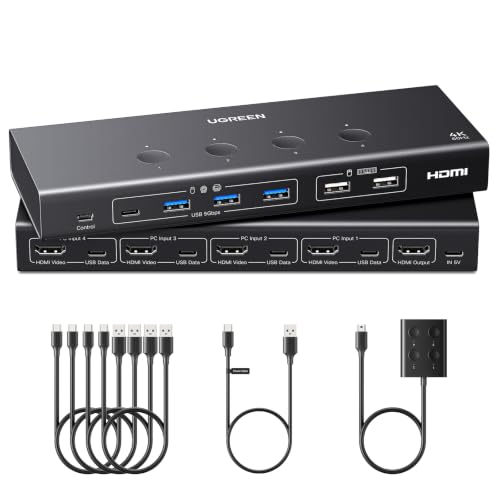
- Shares one monitor and USB peripherals across four computers
- Six USB ports: four USB 3.0 and two USB 2.0
- 4K@60Hz support with optional EDID emulation
Best For: Four-computer Windows setups using one shared monitor
Compact 4K Dual-Computer Control

- Controls two computers through one HDMI monitor
- Four USB 3.0 ports with up to 5Gbps transfer
- Supports Windows, Mac, and Linux
Best For: Two-computer, single-monitor Windows desks
Four-Computer HDMI Sharing

- Shares one monitor among four computers
- Supports 4K at 60Hz with adaptive EDID
- Includes USB 3.0, USB-C, buttons, and wired remote
Best For: Four-computer Windows workstations
Best Dual-Monitor Pick – Ouluoa 4K Dual-Monitor KVM
For shoppers comparing kvm switches for windows, the Ouluoa is a strong fit for a two-screen workstation. It lets two computers share two HDMI displays, keyboard, mouse, and USB peripherals, with support for extended or mirrored displays and 4K at 60Hz.
Best For: Windows users building a dual-monitor work or gaming setup.
Pros:
- Supports two HDMI monitors with extended and mirror modes.
- Provides 4K at 60Hz and four USB 3.0 ports.
- Includes a wired controller, EDID support, and an external power adapter.
Cons:
- Designed for two-monitor setups rather than single-display use.
- Requires separate HDMI connections from each computer.
- External power is needed for stable operation with demanding peripherals.
The Ouluoa combines dual-display flexibility, high-resolution output, and convenient desktop switching. Its driverless compatibility with Windows, macOS, and Linux makes it a practical choice for a mixed-device workspace.
Best USB-Only Alternative – UGREEN 4-Port USB Switch
Although it is not a video KVM, this UGREEN switch can complement kvm switches for windows when you only need to share USB accessories. It connects two computers to four USB devices, including a mix of USB-C and USB-A peripherals, but it does not carry monitor signals.
Best For: Windows users sharing keyboards, mice, printers, cameras, or other USB devices without switching displays.
Pros:
- Shares four USB devices between two computers.
- Includes one USB-C port and three USB-A ports.
- Offers USB 3.0 transfer speeds up to 5Gbps and button or remote switching.
Cons:
- It is not a true KVM switch and does not support monitor or video transmission.
- High-power devices may require an optional power supply.
- The USB-C port does not support video output or display docks.
Choose this model when peripheral sharing is the main goal and your monitors already have their own input-switching solution. Its broad operating-system compatibility and flexible port selection suit a simple two-computer desk.
Best Feature-Matched Option – 4K60Hz Dual-Monitor HDMI KVM
This dual-monitor HDMI model is worth considering among kvm switches for windows if you need two computers to share two displays and USB accessories. It supports 4K at 60Hz, extended or duplicate display modes, and switching from either the unit or its wired controller.
Best For: Windows users with two HDMI-equipped computers and two HDMI monitors.
Pros:
- Supports two monitors, four USB 3.0 devices, and two computers.
- Handles 4K at 60Hz and also supports 2K at 144Hz and 1080p.
- Uses a metal housing, LED channel indicator, and included 12V power adapter.
Cons:
- Each computer needs two HDMI outputs and one USB-A port.
- Keyboard hotkey switching is not supported.
- 4K at 60Hz requires compatible computers, monitors, and HDMI cables.
This KVM offers a clear dual-display setup for compatible hardware, with straightforward button or wired-controller operation. Check your computer ports and cable capabilities before buying, especially for 4K operation.
Best Budget Peripheral Switch – BENFEI 4-Port USB Switch
For a straightforward accessory-sharing setup, the BENFEI is a practical alternative to full kvm switches for windows. It lets two computers share four USB 3.0 devices, while a button and LED indicator make it easy to select the active computer.
Best For: Windows users who need to share USB peripherals between a work PC and a personal computer.
Pros:
- Shares keyboards, mice, printers, scanners, cameras, and other USB devices.
- Supports transfer speeds up to 5Gbps and USB 2.0 compatibility.
- Driver-free compatibility includes Windows, macOS, Linux, and Chrome OS.
Cons:
- It switches USB peripherals only and does not switch monitors.
- High-power devices may need external power, and the adapter is not included.
- Connection requires the supplied-style USB-A-to-USB-A cable arrangement.
The BENFEI is best viewed as a compact USB sharing switch rather than a complete video KVM. Its simple one-button operation, broad OS support, and 18-month warranty make it suitable for basic peripheral sharing.
Best Dual-Monitor HDMI Pick – UGREEN 2-Computer 2-Monitor KVM
For shoppers comparing kvm switches for windows, this UGREEN model is designed for two computers sharing two HDMI monitors, plus one keyboard, mouse, and other USB devices. It supports 4K at 60Hz, extend or mirror display modes, and plug-and-play setup without software or drivers.
Best For: Windows users building a dual-monitor workstation around two HDMI-equipped computers.
Pros:
- Supports two monitors with extend and mirror modes.
- Delivers up to 4K@60Hz and supports HDR formats and HDMI 2.0.
- Includes four USB 3.0 ports, including USB-A and USB-C connections.
- Offers front-button and wired desktop-controller switching.
Cons:
- It is an HDMI switch, not a DisplayPort KVM.
- Each computer needs two HDMI cables and one USB-A connection.
- It does not support EDID emulation or keyboard hotkey switching.
This is a practical choice when your Windows setup uses two HDMI monitors and you want shared USB peripherals. Confirm your computers support simultaneous dual displays, and use the included power adapter for reliable USB operation.
Best High-Refresh Option – 8K Dual-Monitor HDMI KVM
This dual-monitor HDMI KVM stands out among kvm switches for windows with support for up to 8K@60Hz or 4K@120Hz. It lets two Windows, Mac, or Linux computers share two monitors, a keyboard, a mouse, and USB peripherals through a powered, plug-and-play design.
Best For: Windows work, design, or gaming setups that prioritize high resolution and high refresh rates.
Pros:
- Supports 8K@60Hz and 4K@120Hz video output.
- Provides four USB 3.0 ports with 5Gbps transfer speeds.
- Includes a wired remote and front-button switching.
- Metal housing and a 5V/2A power adapter support stable operation.
Cons:
- It uses HDMI connections, so it is not a DisplayPort solution.
- High-resolution performance depends on compatible computers, monitors, and cables.
- The listing does not specify EDID emulation or hotkey switching.
Choose this model if your Windows system can take advantage of 4K high refresh or 8K output. Its powered USB hub and wired remote add convenience, while the included braided 8K HDMI cable helps simplify setup.
Best for Four Computers – UGREEN 4-Computer HDMI KVM
If you need to manage more than two systems, this UGREEN model is a useful option among kvm switches for windows. It allows four computers to share one HDMI monitor, keyboard, mouse, and up to six USB devices, with 4K@60Hz support and button or wired-controller switching.
Best For: Windows users managing four computers from a single-monitor desk or control station.
Pros:
- Connects four computers to one shared monitor and USB setup.
- Offers four USB 3.0 ports and two USB 2.0 ports.
- Supports 4K@60Hz, HDR, HDMI 2.0, and lower-resolution modes.
- Optional EDID emulation can help preserve display settings during switching.
Cons:
- Only one monitor is supported.
- HDMI cables and the power adapter are not included.
- Each computer requires an HDMI cable plus a USB-A-to-C data connection, and docking stations are not supported.
This is the most suitable pick here for a four-computer Windows environment where one display is sufficient. Budget for the required cables and power supply, and wake laptops from sleep before switching between sources.
Compact 4K Dual-Computer Control – SUIDEK 2-Port HDMI KVM
If you need kvm switches for windows that let one monitor, keyboard, and mouse serve two computers, this SUIDEK model is a practical option. It supports Windows, Mac, and Linux, delivers up to 4K at 60Hz, and includes four USB 3.0 ports for shared peripherals.
Best For: Windows users managing two HDMI-equipped computers from one monitor and one set of peripherals.
Pros:
- Supports up to 4K at 60Hz when compatible cables and matching resolution are used.
- Four USB 3.0 ports offer data transfer speeds up to 5Gbps.
- Switch using the unit’s button or included wired desktop controller.
- Compatible with Windows, Mac, and Linux.
Cons:
- HDMI cables must be purchased separately.
- Does not support DP or VGA interfaces.
- Switching is not supported while computers are in sleep mode.
This is a straightforward two-computer KVM for a single-monitor desk. Keep the included 5V adapter connected, and verify that both computers and the monitor use HDMI before buying.
Four-Computer HDMI Sharing – 4-Port USB 3.0 KVM
For a larger workstation, this four-port unit is among the more flexible kvm switches for windows, allowing four HDMI computers to share one monitor, keyboard, and mouse. It combines 4K output, USB 3.0 peripheral sharing, and clearly labeled physical controls.
Best For: Windows workstations that need to switch one monitor and shared USB devices among four HDMI computers.
Pros:
- Connects up to four computers to one monitor and one keyboard-and-mouse setup.
- Supports 3840×2160 at 60Hz and lower resolutions.
- Provides three USB 3.0 ports plus one USB-C port for shared devices.
- Includes front-panel buttons and a numbered wired remote controller.
Cons:
- Hotkey switching is not supported.
- Computers need HDMI output and USB ports.
- The setup is limited to one shared monitor.
Choose this model when four-source capacity matters more than hotkey control. Its LED indicators, buttons, and remote make source selection easy to see and operate, while the included cables simplify installation.
Dual-Monitor Productivity Setup – TESmart 2×2 HDMI KVM
This TESmart model is designed for demanding dual-display setups and stands out among kvm switches for windows with two-monitor support, EDID emulators, and multiple switching methods. It can connect two computers to two monitors while sharing one keyboard and mouse.
Best For: Windows users who need dual-monitor access to two computers with stable display behavior during switching.
Pros:
- Supports two HDMI computers and two HDMI monitors.
- Delivers up to 4K at 60Hz and supports HDR10, HDCP 2.2, 3D, and Dolby Vision.
- EDID emulators help prevent display settings from changing during switches.
- Offers button, hotkey, and IR remote switching.
Cons:
- Wireless Bluetooth keyboards and mice are not supported.
- The laptop must be capable of driving two monitors.
- AAA batteries for the IR remote are not included.
This is the strongest fit of the three for a two-display Windows workflow, especially when preserving display settings is important. Confirm your laptop’s dual-monitor capability and plan for the required HDMI, USB-B, and peripheral connections.
How We Picked the Best Kvm Switches for Windows
We focused on the connection standards and features that matter most in a Windows workstation: supported resolution and refresh rate, number of computers and displays, USB port speed, peripheral compatibility, switching methods, and setup requirements. The selection includes simple USB sharing switches as well as full HDMI KVMs for dual-monitor desks.
Specifications such as 4K at 60Hz, 4K at 120Hz, and 8K support describe the maximum video capability under the right conditions. Your computers, graphics hardware, cables, and monitors must also support the selected resolution and refresh rate.
Quick Comparison
- For dual monitors: Choose a dual-monitor KVM with two matching video inputs and outputs for each computer.
- For one monitor and several computers: A four-computer HDMI KVM provides centralized control without requiring multiple displays.
- For keyboard, mouse, and USB devices only: USB 3.0 switches are usually more affordable and easier to install than full video KVMs.
- For high-refresh displays: Look for explicit 4K/120Hz or 8K/60Hz specifications, then verify the required HDMI version and cable quality.
- For a clean desk setup: Wired remotes or front-panel buttons make switching easier when the KVM is placed out of reach.
Key Buying Factors for Kvm Switches for Windows
Monitor Layout and Video Connections
First count your computers and monitors. A single-monitor KVM cannot replace a dual-monitor model, and a dual-display setup may require two HDMI connections per computer. Check whether the switch uses HDMI exclusively and whether your Windows PCs need adapters from DisplayPort or USB-C.
Resolution and Refresh Rate
For office work, 4K at 60Hz is typically sufficient. Gaming and motion-heavy work benefit from higher refresh rates, but the switch must support the complete signal path. Confirm compatibility with HDR, adaptive sync, and any unusual ultrawide resolution before buying.
USB Ports and Peripheral Support
USB 3.0 ports are useful for external drives, webcams, printers, and other faster devices, while basic keyboard-and-mouse sharing may work through USB 2.0. Check the port count and remember that some KVMs require a separate USB cable from each computer for peripheral switching.
Switching and Power Requirements
Buttons, hotkeys, and wired controllers offer different levels of convenience. Hotkeys can be fast but may conflict with applications; a physical button or remote is more universal. Powered models are often preferable when using several USB devices or longer cables.
Who Should Buy Which Kvm Switches for Windows?
Choose a dual-monitor KVM if you regularly move between two Windows computers while keeping both displays active. Choose a single-monitor, multi-computer KVM if screen space is less important than connecting several systems. Choose a USB switch if you already have separate video inputs handled and only need to share a keyboard, mouse, printer, scanner, or storage device.
For a mixed work-and-gaming desk, prioritize refresh-rate support and reliable switching. For a productivity setup, prioritize dual-display compatibility, USB ports, and easy controls. Before ordering, map every computer, monitor, and peripheral connection so the selected KVM has enough inputs, outputs, and cables for the complete setup.