The best USB-C KVM switches make it easy to share a monitor, keyboard, mouse, storage, and other peripherals between two or more computers. They can also reduce cable clutter and keep compatible laptops charged through USB-C Power Delivery.
This roundup compares 10 options across dual-monitor setups, 4K and 8K video, high-speed USB connectivity, Thunderbolt compatibility, and charging capacity. Use the guide below to match the switch to your computers, displays, and workflow.
Best 10 USB C Kvm Switches Picks for 2026
Best for Three-Computer USB4 Setups

- Switches one monitor or dock among three computers
- Up to 20Gbps data and 140W active-device charging
- Supports up to 8K/30Hz on Windows with one display
Best For: Three-computer desks using a compatible USB-C or Thunderbolt 4 display or dock
Best for Mixed Laptop-and-Desktop Desks

- Connects two USB-C laptops and one DisplayPort system
- Supports one display up to 8K/60Hz or 4K/144Hz
- Offers up to 60W charging on USB-C inputs
Best For: Mixed desks with two USB-C laptops, one DisplayPort computer, and one monitor
Best for Dual-Monitor Laptop Workstations

- Switches two laptops across two HDMI monitors
- Supports dual 4K/60Hz output and four 5Gbps USB ports
- Provides up to 100W PD input per laptop
Best For: Compatible Windows laptops using a shared dual-monitor workstation
Best for Two-Computer USB4 Sharing

- Shares one USB-C monitor or dock between two computers
- Offers 20Gbps data and up to 140W active-device charging
- Supports up to 8K/30Hz on Windows with one display
Best For: Two-laptop desks using a compatible USB-C or Thunderbolt 4 monitor or dock
Simple Dual-Laptop Switching

- 4K at 60Hz for one HDMI monitor
- Physical button and wired remote switching
- Supports USB hubs, but not USB-C docks
Best For: Two Windows or Mac laptops sharing one HDMI monitor
Triple-Display Docking Powerhouse

- Shares three 4K displays between two computers
- 15-in-1 dock with networking and card readers
- Up to 100W PD pass-through with 120W adapter
Best For: Multi-monitor workstations needing integrated docking
High-Bandwidth USB4 Switching

- Up to 40Gbps USB-C and Thunderbolt bandwidth
- Supports up to 8K at 60Hz or 4K at 240Hz
- 140W PD pass-through and RF remote
Best For: High-performance USB-C or Thunderbolt laptop setups
Best for 8K Setups

- Up to 8K@60Hz with HDMI 2.1 gear
- Physical button and desktop controller
- 100W PD pass-through charging
Best For: High-resolution manual switching
Best USB 3.0 Connectivity
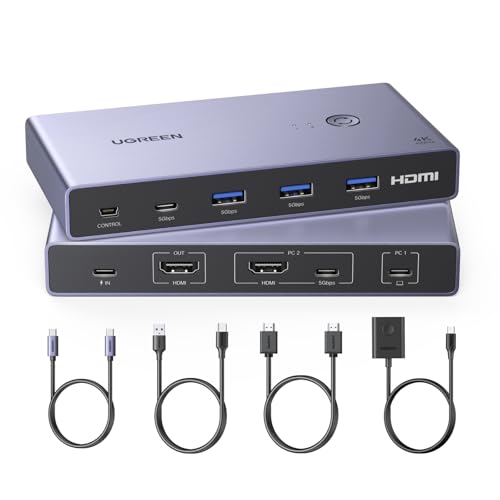
- Four USB 3.0 peripheral ports
- 4K@60Hz HDMI output with HDR 10+
- Physical button and desktop controller
Best For: Fast shared storage and peripherals
Best for Three-Computer USB4 Setups – 3-Computer 20Gbps USB-C KVM
If you need to share one USB-C monitor or compatible docking station among three computers, this USB C KVM switch offers a high-bandwidth setup with remote switching. It supports up to 20Gbps data transfer, 140W pass-through charging for the active computer, and video up to 8K at 30Hz on Windows with a single display.
Best For: Users connecting three Windows computers to one compatible USB-C or Thunderbolt 4 monitor or dock.
Pros:
- Connects and switches among three computers.
- Supports up to 20Gbps USB4/USB-C data transfer.
- Provides up to 140W charging to the selected computer.
- Includes an RF remote for convenient switching.
Cons:
- Requires the included USB4 20Gbps cables; Thunderbolt 3/4/5 cables are not recommended.
- Its 20Gbps bandwidth may limit display resolution or refresh rate compared with a direct dock connection.
- macOS supports only one external display.
This is a feature-rich choice for a three-computer desk, but compatibility is especially important. Verify that your monitor or dock has a detachable host connection and expect only the active computer to receive charging.
Best for Mixed Laptop-and-Desktop Desks – 3-Computer DisplayPort KVM
This USB C KVM switch is designed for a mixed setup with two USB-C laptops and one DisplayPort computer. It shares one monitor, keyboard, mouse, and audio connection, while its DisplayPort 1.4 output supports up to 8K at 60Hz or 4K at 144Hz on a single display.
Best For: Desks combining two USB-C laptops with one DisplayPort desktop or other DisplayPort system.
Pros:
- Supports three computers through two USB-C inputs and one DisplayPort input.
- Drives one display at up to 8K/60Hz or 4K/144Hz.
- Provides up to 60W Power Delivery on each USB-C input.
- Includes shared USB 2.0 peripherals, audio connections, remote switching, and LED indicators.
Cons:
- USB-C laptops must support DisplayPort Alternate Mode for video.
- Supports only one external display, not dual- or multi-monitor setups.
- Shared USB ports are USB 2.0 and are not intended for fast storage.
Choose this model when input flexibility matters more than multi-monitor expansion. Confirm the USB-C video capability of both laptops before buying, particularly if either uses a data-only or charging-only port.
Best for Dual-Monitor Laptop Workstations – Dual-4K USB-C Docking KVM
For a two-laptop workstation that needs two screens, this USB C KVM switch combines docking and KVM functions. It supports two HDMI monitors at up to 4K/60Hz, provides four USB 3.0 ports, and switches shared peripherals between two laptops.
Best For: Windows-oriented dual-monitor setups that share displays, USB accessories, and charging between two laptops.
Pros:
- Supports two external HDMI monitors at up to 4K/60Hz.
- Includes four USB 3.0 ports with speeds up to 5Gbps.
- Offers up to 100W PD input for each connected laptop, with the required adapter sold separately.
- Provides button or wired-remote switching and LED status indicators.
Cons:
- Laptop USB-C ports must support DP Alt Mode, data, and Power Delivery.
- Extended mode is not supported on macOS because of MST limitations on Mac M1/M2 systems.
- Recommended cable lengths and specifications are important for reliable 4K output.
This is the strongest fit here for a dual-screen productivity desk, especially with compatible Windows laptops. Mac users should review the display-mode limitation carefully, and remember that a 100W adapter is not included.
Best for Two-Computer USB4 Sharing – 2-Computer 20Gbps USB-C KVM
This two-computer USB C KVM switch lets you share a USB-C or Thunderbolt 4 monitor or compatible docking station between two laptops. It combines up to 20Gbps data transfer, 140W charging for the active computer, RF remote switching, and support for resolutions up to 8K at 30Hz on Windows.
Best For: Two-laptop setups using one USB-C monitor or Thunderbolt 4 dock with a detachable host cable.
Pros:
- Shares one compatible monitor or dock between two computers.
- Supports up to 20Gbps USB4/USB-C data speeds.
- Passes through up to 140W to the selected computer.
- Supports up to 4K/144Hz on Windows and 4K/60Hz on macOS with one display.
Cons:
- Requires the included USB4 20Gbps cables rather than Thunderbolt 3/4/5 cables.
- 20Gbps bandwidth can limit resolution, refresh rate, or monitor count versus a direct dock connection.
- Only the active computer charges, and macOS supports one external display.
This is a practical two-computer solution when your monitor or dock is compatible and has a detachable host connection. Check the dock’s display requirements and cable setup first, particularly if you plan to use multiple monitors on Windows.
Simple Dual-Laptop Switching – MLEEDA USB-C KVM Switch
This compact option among USB C KVM switches lets two Windows or Mac laptops share one HDMI monitor and a USB-connected keyboard, mouse, or other peripheral. It supports up to 4K at 60Hz and offers both a physical button and a wired remote for convenient switching.
Best For: Users with two laptops, one HDMI monitor, and a straightforward desk setup.
Pros:
- Supports 4K at 60Hz and lower resolutions, including 1440p at 120Hz.
- Includes a 1.5-meter wired remote and clear active-computer LED indicators.
- Can connect to a USB hub to expand keyboard, mouse, printer, and other USB ports.
- Compact aluminum enclosure with 12 months of after-sales service.
Cons:
- Works only with HDMI monitors; HDMI, USB-C, and other connection cables are not included.
- Requires the included USB power cord and does not support USB-C docking stations.
- No EDID emulation or hotkey switching.
This is a practical, focused KVM for a two-laptop, single-monitor workstation. Confirm that both laptops run Windows or macOS and that your monitor uses HDMI before buying.
Triple-Display Docking Powerhouse – USB-C KVM Docking Station
For demanding workstations, this USB C KVM switch combines laptop switching with a 15-in-1 docking station. It can share three monitors, peripherals, Ethernet, card readers, and other connections between two computers while providing up to 100W PD pass-through charging.
Best For: Hybrid workers, creators, traders, and IT users who need multiple displays and extensive dock connectivity.
Pros:
- Shares up to three 4K-at-60Hz displays between two computers.
- Supports dual-display 4K at 120Hz when using two DisplayPort monitors and a compatible Thunderbolt 4 computer.
- Includes a 15-in-1 dock with USB ports, DisplayPort, HDMI, Gigabit Ethernet, and SD/microSD slots.
- Provides up to 100W laptop PD pass-through and includes a 120W power adapter.
Cons:
- The host laptop must support USB-C DP Alt Mode and data transmission, or use Thunderbolt 3, 4, or 5.
- Compatibility varies by laptop model, so checking the manufacturer’s list is important.
- Its larger enclosure takes more desk space than a basic two-port KVM.
This model is best viewed as a full workstation hub rather than a simple switch. It offers substantial display and charging capability, but compatibility checks are essential before purchase.
High-Bandwidth USB4 Switching – Cable Matters 40Gbps KVM
This premium entry among USB C KVM switches is designed for compatible USB-C, USB4, and Thunderbolt setups. It can share a USB-C or Thunderbolt monitor or a detachable-cable dock between two laptops, with bandwidth up to 40Gbps and support for high-resolution displays.
Best For: MacBook and Windows laptop users with USB-C or Thunderbolt monitors and compatible detachable-cable docks.
Pros:
- Supports up to 40Gbps bandwidth for storage, dock peripherals, video equipment, and other USB devices.
- Supports up to 8K at 60Hz, 6K at 60Hz, or 4K at 240Hz with compatible equipment and DSC where required.
- Passes through up to 140W PD to the active laptop when the source supports it.
- Includes built-in host and output cables plus an RF remote that does not require line of sight.
Cons:
- Compatible docks must have detachable host cables; docks with built-in host cables are not supported.
- An 80Gbps dock is limited to 40Gbps through the switch, and USB-C extension cables are not recommended.
- Actual resolution, refresh rate, and charging depend on the complete setup.
This is the strongest fit for high-performance USB-C and Thunderbolt ecosystems. Its capabilities are impressive, but buyers should verify dock compatibility, cable requirements, and the limits of their monitor and laptops.
Best Thunderbolt-Ready Value – 4K 100W USB-C KVM
This USB C KVM switch is designed for two compatible laptops sharing one HDMI monitor and a single keyboard-and-mouse setup. It supports up to 4K at 60Hz and includes laptop power delivery, but compatibility is important: both computers need compatible Thunderbolt USB-C ports with video and charging support.
Best For: Users with two Thunderbolt-equipped laptops who want one-monitor switching, shared USB peripherals, and up to 100W pass-through charging.
Pros:
- Supports two laptops with one HDMI monitor at up to 4K@60Hz.
- Provides up to 100W charging for the computer in use.
- Includes USB-A and USB-C 2.0 ports for peripherals such as keyboards, mice, printers, and storage.
Cons:
- Requires compatible Thunderbolt 3 or newer laptop ports.
- Supports HDMI monitors only; USB-C data ports do not carry video.
- Power must remain connected for the switch to operate, and it cannot charge both laptops simultaneously.
This model is a practical choice when both source devices meet its Thunderbolt requirements. Confirm your laptop ports and use a quality HDMI cable before buying, especially if 4K@60Hz output is essential.
Best for 8K Setups – MINIX K2 USB-C and HDMI KVM
The MINIX K2 is a USB C KVM switch for combining a USB-C laptop and an HDMI computer with one HDMI monitor, keyboard, mouse, and printer. It uses a physical switch or desktop controller rather than hotkeys or automatic switching, and it can reach 8K@60Hz when the host computer, monitor, and cables all support HDMI 2.1.
Best For: Designers, gamers, and multi-computer users who want a manually controlled KVM with high-resolution HDMI 2.1 support and laptop power pass-through.
Pros:
- Supports up to 8K@60Hz with compatible HDMI 2.1 equipment.
- Offers both a device button and included desktop controller for switching.
- Provides 100W PD pass-through and works with Windows, macOS, Linux, and Android.
Cons:
- Supports only one HDMI monitor.
- HDMI cables are not included, and the charger is not included.
- Requires a 12V power connection for high-power USB devices and does not support Apple Studio Display.
The K2 stands out for demanding display setups, but its 8K capability depends on compatible HDMI 2.1 source hardware, monitor, and cables. Its manual-only switching is a good fit for users who prioritize stability over automatic convenience.
Best USB 3.0 Connectivity – UGREEN 4K USB-C KVM
For buyers comparing USB C KVM switches, the UGREEN CM731 focuses on fast peripheral sharing between a USB-C laptop and an HDMI computer. It connects both computers to one HDMI monitor and provides four USB 3.0 ports, with switching available from the unit or its desktop controller.
Best For: Work and gaming desks that need shared USB 3.0 accessories, including storage, printers, keyboards, and mice, across one laptop and one desktop.
Pros:
- Supports 4K@60Hz output along with HDR 10+, HDCP 2.2, and 3D.
- Includes three USB-A 3.0 ports and one USB-C port with speeds up to 5Gbps.
- Includes an HDMI cable, USB-C cable, USB-A-to-C data cable, and desktop controller.
Cons:
- Power adapter and power cable are not included.
- Does not support automatic or hotkey switching.
- Requires the PC2 HDMI connection plus a USB-A-to-C data connection, and supports HDMI monitors only.
This UGREEN switch is especially appealing when peripheral transfer speed matters more than automatic switching. Plan for an additional power supply if you will connect high-power USB devices, and verify that the laptop USB-C port supports full audio and video transmission.
How We Picked the Best USB C Kvm Switches
We selected these USB-C KVM switches based on the features that most affect everyday usability: supported video resolution and refresh rate, the number of computers and displays, USB data speeds, Power Delivery capacity, operating-system compatibility, and connection flexibility. We also considered whether each model is better suited to a simple single-monitor setup, a dual-display desk, or a more advanced multi-monitor workstation.
Specifications matter because USB-C is only the connector shape. A port may support charging, video, data, or all three, and the actual performance depends on the computer, display, cables, and adapters used with it.
Quick Comparison
- Best for high-speed connectivity: Cable Matters 40Gbps USB-C KVM Switch for 2 Laptops.
- Best for high-power charging: Cable Matters 20Gbps models with 140W Power Delivery.
- Best for 8K output: The SABRENT and MINIX options, provided the computer and display support the required signal.
- Best for multiple displays: The dual-monitor and three-monitor docking KVM models.
- Best for a simple one-monitor desk: Compact HDMI and USB-C plus HDMI switches from UGREEN, MINIX, or MLEEDA.
Key Buying Factors for USB-C KVM Switches
Video Support
Check the exact resolution and refresh-rate combination you need. A switch advertised as 4K may support 4K at 60Hz, while higher refresh rates can require lower resolutions or a compatible DisplayPort, HDMI, or USB-C video path. For 8K, every part of the chain must support the required bandwidth.
Number of Displays and Computers
Match the switch to your desk layout. Single-monitor models are simpler and generally easier to configure. Dual- and triple-monitor KVMs are more suitable for productivity workstations, but they may require additional video cables, stronger host support, or DisplayLink software.
Power Delivery
Power Delivery ratings such as 60W, 100W, and 140W describe the maximum supported charging output, not necessarily what every laptop will receive. Confirm your laptop’s charging requirement and whether the KVM includes a compatible power supply.
USB Speed and Peripheral Support
USB 2.0 is usually sufficient for keyboards and mice, while USB 3.x or 20Gbps connections are better for external SSDs and high-bandwidth accessories. Verify which ports share bandwidth and whether printers, storage devices, webcams, and audio interfaces are supported.
Compatibility and Switching Method
Confirm compatibility with Windows, macOS, ChromeOS, Thunderbolt, and your specific laptop ports. Switching may use a physical button, wired remote, keyboard shortcut, or automatic detection. A physical button is often the most dependable option for mixed-device setups.
Who Should Buy Which USB C Kvm Switches?
Choose a compact single-monitor KVM if you mainly move between two laptops and need shared keyboard, mouse, and display access. Select a high-power 20Gbps model if you use demanding laptops and want fast peripherals alongside substantial charging. A 40Gbps or Thunderbolt-compatible switch is the better fit for compatible premium laptops, fast storage, and bandwidth-heavy workflows.
For a productivity desk with two screens, choose a dual-monitor KVM or docking model and confirm that both computers can drive the intended displays. Multi-monitor users should prioritize documented display support over headline resolution. If you want the simplest setup, an HDMI-based model with clearly labeled host and peripheral ports can be easier to install than a feature-heavy dock.
Before buying, list your computers, monitors, peripherals, required refresh rates, and charging needs. Then check the included cables and power adapter; the right USB-C KVM switch is one that supports the complete setup, not just the highest specification printed on the box.