Choosing among the best KVM extenders for Mac depends on more than video resolution. Your Mac model, display setup, USB requirements, connection distance, and whether you need true extension or simple computer sharing all affect the right fit.
This roundup covers HDMI-over-Ethernet extenders, Thunderbolt and USB-C KVM docks, and multi-monitor switches designed to help Mac users share displays and peripherals with less desk clutter. Use the guide below to narrow the options by performance, distance, compatibility, and installation needs.
Best 10 Kvm Extenders for Mac Picks for 2026
Best Long-Range IP KVM

- Extends HDMI, USB, and audio over Ethernet
- Works with macOS without drivers
- Supports remote control up to 390 feet
Best For: Remote Mac workstations and server-room installations
Best HDBaseT KVM Extender

- Reaches up to 400 feet over HDBaseT
- Supports 4K60 4:4:4 and HDR formats
- Includes USB KVM and two-way IR
Best For: Long-distance 4K AV and gaming installations
Best MacBook-and-PC KVM Dock

- Shares two 4K monitors between MacBook and desktop PC
- Requires no DisplayLink software
- Adds USB, Ethernet, audio, storage, and 100W charging
Best For: A streamlined dual-monitor MacBook-and-PC desk
Best Long-Run HDMI KVM
4K HDMI Over Ethernet Extender
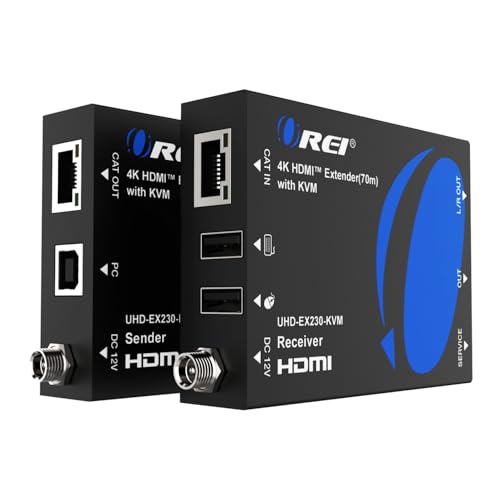
- 4K at 60Hz up to 230 feet over Cat6/7
- Remote USB keyboard and mouse control
- HDMI loop-out and HDR format support
Best For: Long-distance HDMI and USB control setups
Best Dual-Monitor Mac Dock KVM
Thunderbolt KVM Switch for Two MacBooks

- Shares two monitors between two laptops
- Supports 4K at 60Hz via HDMI or DisplayPort
- Adds USB, card slots, and Gigabit Ethernet
Best For: Dual-monitor MacBook workstations
Best Network-Based KVM

- Extends HDMI and USB up to 394 feet over Cat5e
- Works through compatible Gigabit Ethernet switches
- Remote receiver includes three USB 2.0 ports
Best For: Networked remote-control and server-room setups
Triple-Display KVM

- Shares three HDMI monitors between two computers
- Supports 4K@60Hz and four USB 3.0 ports
- Requires three HDMI cables per computer for triple output
Best For: Multi-monitor Mac desk setups
Long-Range KVM Extender
1080p HDMI Over Ethernet for Mac
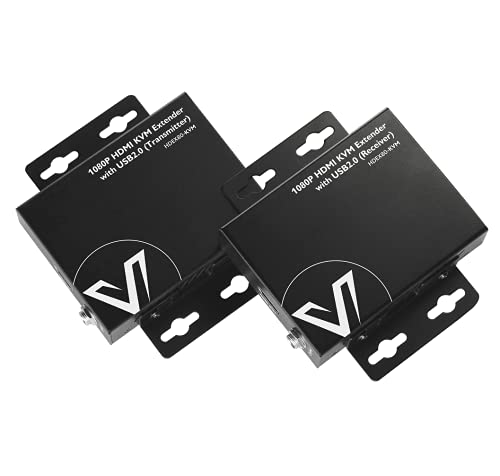
- Reaches up to 260 feet over one Cat cable
- Extends HDMI and two USB 2.0 ports
- Plug-and-play support for Mac OS and Linux
Best For: Remote 1080p Mac control over long cable runs
400-Foot KVM Extender

- Extends 1080p HDMI up to 400 feet
- Adds loop-out for local monitoring
- Supports only USB 1.1 keyboards and mice
Best For: Long-distance 1080p installations with basic KVM control
Best Long-Range IP KVM – 4K HDMI USB KVM Extender
If you need kvm extenders for mac that can place a computer away from your desk, this AV Access model sends HDMI video, audio, USB, and remote-control signals over one Ethernet cable. It works with macOS without drivers and supports 4K at 30Hz.
Best For: Mac users building remote workstations, server-room consoles, or distributed control setups over existing Ethernet infrastructure.
Pros:
- Extends 4K video and USB up to 390 feet over Cat5e, or farther with higher-category cable.
- Works with Windows, macOS, and Linux without driver installation.
- Receiver provides three USB ports for peripherals such as storage devices, controllers, or printers.
- Supports up to 16 paired extender sets using DIP switches.
Cons:
- 4K output is limited to 30Hz.
- Requires a transmitter and receiver, plus suitable Ethernet cabling or network infrastructure.
This is a practical choice when distance and flexible deployment matter more than the highest refresh rate. Its IP-based design is especially useful for centralized equipment rooms and professional installations.
Best Triple-Display Dock KVM – Thunderbolt 4 DisplayLink KVM
For demanding kvm extenders for mac setups, this Thunderbolt 4 KVM dock switches one triple-monitor workstation between two laptops. Its DisplayLink design supports extended displays on Mac systems with M1 through M5 processors, but requires DisplayLink software.
Best For: Mac and Windows laptop users who need to share three 4K displays, USB peripherals, storage readers, Ethernet, and charging.
Pros:
- Supports three simultaneous displays up to 4K at 60Hz.
- Designed for extended-display use on compatible M1-M5 Macs.
- Includes fast USB ports, SD/TF readers, Gigabit Ethernet, and power delivery.
- Can switch using the device button or included wired remote.
Cons:
- DisplayLink driver installation is required.
- Keyboard hotkey switching is not supported.
- Not compatible with Linux or Unix systems.
This model offers the broadest multi-monitor capability in the group, though it is less plug-and-play than a conventional KVM. Confirm your operating system, driver requirements, and display cabling before buying.
Best HDBaseT KVM Extender – 4K HDMI Over Ethernet KVM
This OREI unit is a straightforward option among kvm extenders for mac when you want to carry 4K HDMI and USB KVM signals over a long Ethernet-style link. Its HDBaseT design reaches up to 400 feet and adds two-way IR for compatible remote-control applications.
Best For: Mac-connected displays, gaming consoles, and AV installations that need long-distance 4K video with USB KVM control.
Pros:
- Extends signals up to 400 feet using HDBaseT technology.
- Supports 4K60 4:4:4, HDR formats, and HDCP 2.2.
- Includes USB 1.1 KVM and two-way IR functionality.
- Package includes both transmitter and receiver.
Cons:
- The supplied notes provide limited detail about macOS-specific compatibility.
- USB 1.1 is slower than the USB 2.0 or USB 3.x connectivity offered by some alternatives.
Choose this extender when uncompressed-looking 4K60 video specifications and long HDBaseT reach are more important than extensive USB expansion. Verify the host computer and peripheral requirements before purchase.
Best MacBook-and-PC KVM Dock – Dual 4K USB-C KVM Dock
This AV Access dock is a desk-friendly choice for kvm extenders for mac, combining KVM switching with dual-monitor docking. It is designed for one MacBook and one desktop PC, shares displays and peripherals, and switches through a top button or wired remote without DisplayLink software.
Best For: Users who want one dual-4K workspace for a compatible MacBook and desktop PC, with Ethernet, USB, audio, storage, and charging built in.
Pros:
- Supports two 4K HDMI displays for a shared MacBook-and-PC workspace.
- Plug-and-play operation requires no DisplayLink driver.
- Combines KVM switching with USB, SDXC, audio, Gigabit Ethernet, and up to 100W USB-C power delivery.
- EDID emulation helps preserve display settings during switching.
Cons:
- Designed for one MacBook and one desktop PC, not two laptops.
- Base M1 and M2 MacBooks support only one external display.
- Some dual-display Mac configurations require closing the laptop lid or have resolution limits.
This is the most convenient option for a fixed MacBook-plus-desktop desk, especially if you want to replace several hubs and switches with one dock. Check your Mac chip and the required host connections before ordering.
Best Long-Run HDMI KVM – 4K HDMI Over Ethernet Extender
For shoppers comparing kvm extenders for mac, the OREI EX-230PRO-KVM is a practical choice when a Mac or other HDMI source needs to connect to a distant display while retaining remote keyboard-and-mouse control. It sends 4K video up to 230 feet over Cat6 or Cat7 cabling and includes an HDMI loop-out for a local display.
Best For: Extending a Mac-connected HDMI workstation to a remote display and USB keyboard/mouse over a long cable run.
Pros:
- Supports up to 4K at 60Hz over Cat6/7 cable runs up to 230 feet.
- Includes USB KVM extension, HDMI loop-out, and EDID pass-through.
- Supports HDR formats, Dolby Vision, and multichannel audio formats.
Cons:
- Requires HDMI and USB connections, so it is not a single-cable USB-C Mac dock.
- The listed 230-foot distance is specified for high-quality Cat6/7 cabling.
This OREI model stands out for long-distance, high-refresh HDMI extension with straightforward plug-and-play installation. It is best suited to setups where the Mac or source device remains in one location and the display and controls need to move elsewhere.
Best Dual-Monitor Mac Dock KVM – Thunderbolt KVM Switch for Two MacBooks
Among kvm extenders for mac, this USB-C KVM docking station is aimed at users who want two compatible MacBooks to share a complete dual-monitor desk. DisplayLink software enables two extended external displays, while the dock also consolidates USB accessories, storage cards, and Gigabit Ethernet.
Best For: Home-office or professional users switching two MacBooks between two monitors, shared peripherals, and a wired network connection.
Pros:
- Lets two compatible laptops share two monitors, keyboard, mouse, and peripherals.
- Supports up to 4K at 60Hz through HDMI or DisplayPort outputs.
- Includes USB-A and USB-C data ports, SD and microSD slots, and Gigabit Ethernet.
Cons:
- DisplayLink software must be installed on each laptop.
- Compatibility depends on an appropriate USB-C data connection and matching display cables.
- It is a desk dock rather than a long-distance Ethernet KVM extender.
This is the most workstation-focused option in the group, combining KVM switching with dual-display docking features. The included wired controller is useful when the main unit sits behind a monitor or under a desk.
Best Network-Based KVM – 4K HDMI KVM Extender Over IP
For kvm extenders for mac deployments that need more flexible placement, the AV Access 4K HDMI KVM Extender uses Cat5e/6/7 Ethernet cabling to carry HDMI video and USB control. It can operate directly between transmitter and receiver or through compatible Gigabit Ethernet switches.
Best For: Server rooms, control centers, classrooms, and distributed Mac workstations that need remote keyboard-and-mouse access across an Ethernet installation.
Pros:
- Extends HDMI video and USB control up to 394 feet over Cat5e, or up to 492 feet over Cat6/6A/7.
- Can use an existing Gigabit Ethernet network or a direct point-to-point connection.
- Provides remote USB 2.0 access with three receiver-side USB device ports.
Cons:
- Maximum listed video resolution is 4K at 30Hz rather than 4K at 60Hz.
- Requires compatible Gigabit Ethernet equipment for network-based deployments.
- Its HDMI and USB design may require adapters or additional connections with some Macs.
The AV Access extender is a strong fit when cable distance and network flexibility matter more than 4K60 output. Its remote USB hub and stated zero-latency design make it suitable for responsive control from a separate room or workstation.
Triple-Display KVM – 3-Monitor HDMI KVM for Mac
If you need kvm extenders for mac but are actually sharing a workstation setup between two nearby computers, this switch offers a practical three-monitor solution. It supports up to 4K at 60Hz, four USB 3.0 peripherals, and extended or duplicated display modes, provided each computer supports triple displays and is connected with three HDMI cables.
Best For: Mac users sharing three HDMI monitors and USB peripherals between two computers at a desk.
Pros:
- Shares three HDMI monitors between two computers.
- Supports up to 4K@60Hz when the source, displays, and cables support it.
- Includes four USB 3.0 ports with speeds up to 5Gbps.
- Works with Mac OS, Windows, Linux, and Unix systems.
Cons:
- Each computer needs three HDMI connections for triple-monitor output.
- Requires the included 12V power adapter for operation.
- Does not support keyboard shortcut switching.
This is the strongest choice here for a multi-monitor desk rather than a long-distance installation. Its main limitation is the amount of cabling required, but the dedicated switch and wired controller make changing computers straightforward.
Long-Range KVM Extender – 1080p HDMI Over Ethernet for Mac
For buyers specifically looking for kvm extenders for mac, this AV Access model sends 1080p video and USB control over a single Cat5e or better cable. It reaches up to 260 feet, needs no software or driver, and is designed for remote keyboard-and-mouse access to a computer, NVR, or similar device.
Best For: Extending a Mac-compatible 1080p workstation or NVR to a remote screen and USB controls.
Pros:
- Extends 1080p@60Hz HDMI and USB signals up to 260 feet.
- Uses one Cat5e/6/6a/7 Ethernet cable for the long connection.
- Provides two USB 2.0 ports with speeds up to 480Mbps.
- Supports Mac OS, Windows, and Linux without software or drivers.
Cons:
- Video output is limited to 1080p@60Hz.
- USB connectivity is USB 2.0 rather than USB 3.0.
- Although two-way PoE is supported, the manufacturer recommends installing the power adapter at the receiver.
Choose this extender when distance matters more than 4K resolution. Its metal enclosure, surge and ESD protection, and plug-and-play setup make it suitable for clean remote-control installations, while the 1080p ceiling rules out demanding high-resolution workflows.
400-Foot KVM Extender – 1080p HDMI with Loop Out
This VPFET unit is a long-distance option among kvm extenders for mac, carrying 1080p HDMI up to 400 feet over Cat6 or Cat7 cable. It adds a loop-out connection for local monitoring and supports basic remote keyboard-and-mouse control, but its USB support is limited to standard USB 1.1 peripherals.
Best For: Classrooms, conference rooms, and home theaters needing long-range 1080p display extension with basic KVM control.
Pros:
- Extends 1080p@60Hz HDMI up to 400 feet over Cat6/7 cable.
- Loop-out function allows a local monitor connection.
- Supports Mac OS 9.1 and later, Windows, and Linux.
- Includes reset functionality and status indicator lights.
Cons:
- USB support is limited to USB 1.1 keyboards and mice.
- Does not support gaming peripherals or USB switches.
- Transmitter and receiver require separate power connections.
The extended 400-foot range and loop-out make this appealing for installations where a local and remote display are useful. It is less suitable for modern USB-heavy setups, so treat it as a basic keyboard-and-mouse extender rather than a high-speed peripheral hub.
How We Picked These Kvm Extenders for Mac
We selected products based on the features that matter most in Mac-centered workstations: compatibility with MacBooks and Apple silicon systems, supported resolution and refresh rate, number of computers and displays, USB peripheral sharing, transmission distance, and installation method. We also separated true KVM extenders—which place the source and display in different locations—from desktop KVM switches and docking-style products that share monitors and accessories at the same desk.
Because product listings can vary by configuration, confirm the exact input, output, operating-system, and resolution specifications before purchasing. Macs with limited native display support may require DisplayLink software or a compatible dock.
Quick Comparison
- For long cable runs: Choose an HDBaseT or IP-based HDMI extender rated for roughly 230 to 400 feet over Cat5e, Cat6, or Cat7 cable.
- For a shared desk: A USB-C or Thunderbolt KVM can switch two computers while sharing displays, keyboard, mouse, and other USB devices.
- For multiple monitors: Look for explicit support for two or three displays and verify whether the Mac can drive that number natively.
- For high-resolution work: Prioritize 4K at 60Hz, HDMI 2.0 or better, and sufficient bandwidth throughout the entire signal path.
Key Buying Factors for Kvm Extenders for Mac
Mac and Display Compatibility
Check whether the product uses HDMI, USB-C, Thunderbolt, or DisplayLink. A MacBook may need a USB-C hub or adapter, while M-series models can have display limits that differ by chip generation. If the product relies on DisplayLink, expect driver installation and possible software permissions.
Distance and Cabling
Ethernet-style extenders typically use point-to-point Cat5e, Cat6, or Cat7 cable rather than a regular network connection. For the most reliable results, match the cable quality to the rated distance and avoid unnecessary couplers or patch panels. IP extenders may offer more flexible routing but can introduce network configuration issues.
Video, USB, and Control Features
Confirm the resolution, refresh rate, HDR or HDCP support, and whether EDID management is included. For a complete workstation, verify USB 2.0 or USB 3.0 support, keyboard-and-mouse switching, audio handling, IR pass-through, and features such as loop-out or power over cable.
Who Should Buy Which Kvm Extenders for Mac?
Choose a long-range HDMI extender if your Mac is in one room and the monitor or USB workstation is in another. HDBaseT models are a practical choice for stable point-to-point installations, while IP models suit setups that may later expand across an Ethernet infrastructure.
Choose a Thunderbolt or USB-C KVM dock if two MacBooks or a Mac and PC share one or more desk monitors and peripherals. These products reduce adapter clutter, but they require careful attention to charging, monitor outputs, and DisplayLink requirements.
Choose a multi-monitor KVM switch if you need to toggle between computers at the same desk. Confirm that each computer supports the intended number of displays and that the switch’s cables and ports match your Macs.